The New Relic Synthetics private locations UI has been updated. Private location keys have migrated to a secret store, and key visibility has been removed from several areas of the interface.
What's changing
- List view: The key column has been removed from the private locations list.
- Filter: You can no longer filter private locations by key.
- Metadata & tags: Private location keys no longer appear in the metadata & tags section.
- Key access: Keys are now accessible only through the Edit screen, where you can copy them for your synthetics job manager configuration.
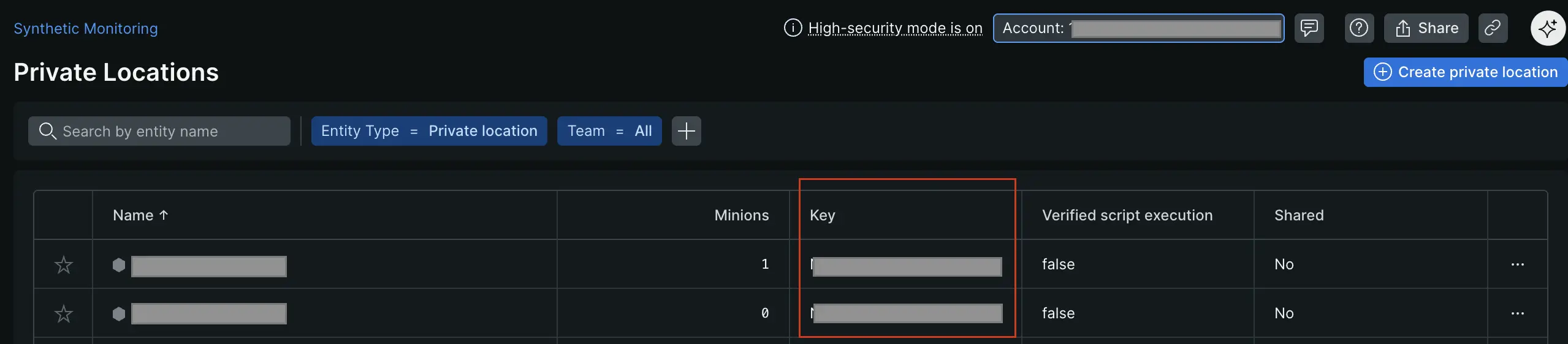
one.newrelic.com > Synthetic monitoring > Private locations: The private locations list no longer displays the key column. Keys are accessed through the Edit menu.
Where keys are no longer displayed
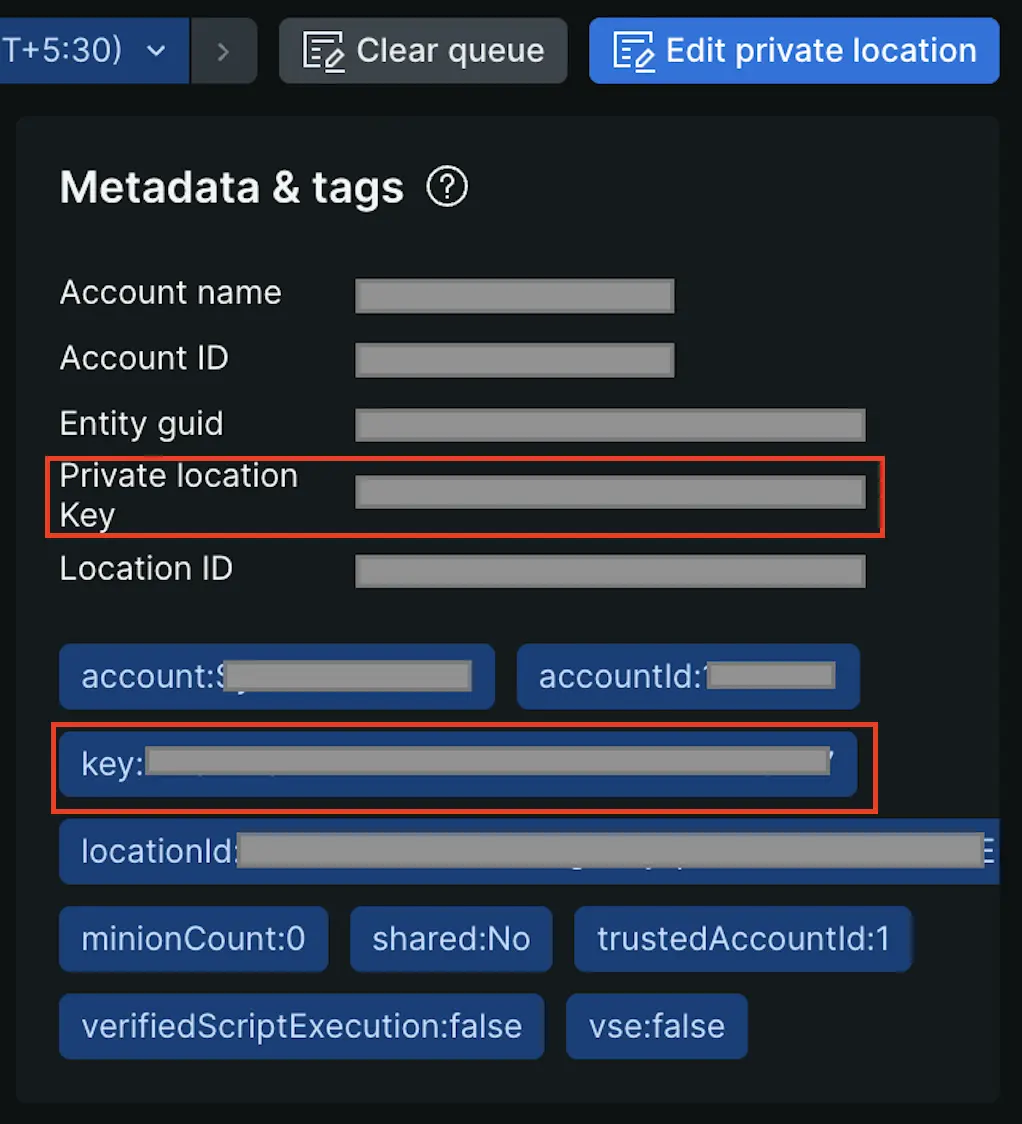
The private location key is no longer displayed in the metadata & tags section of the private location overview page.
Access your private location key
To access your private location key:
- Go to one.newrelic.com > Synthetic monitoring > Private locations.
- Find the private location for which you need the key.
- Click the ellipsis icon next to the location.
- Select Edit.
- From the Edit screen, Copy the key from the Private location key field for your synthetics job manager configuration.
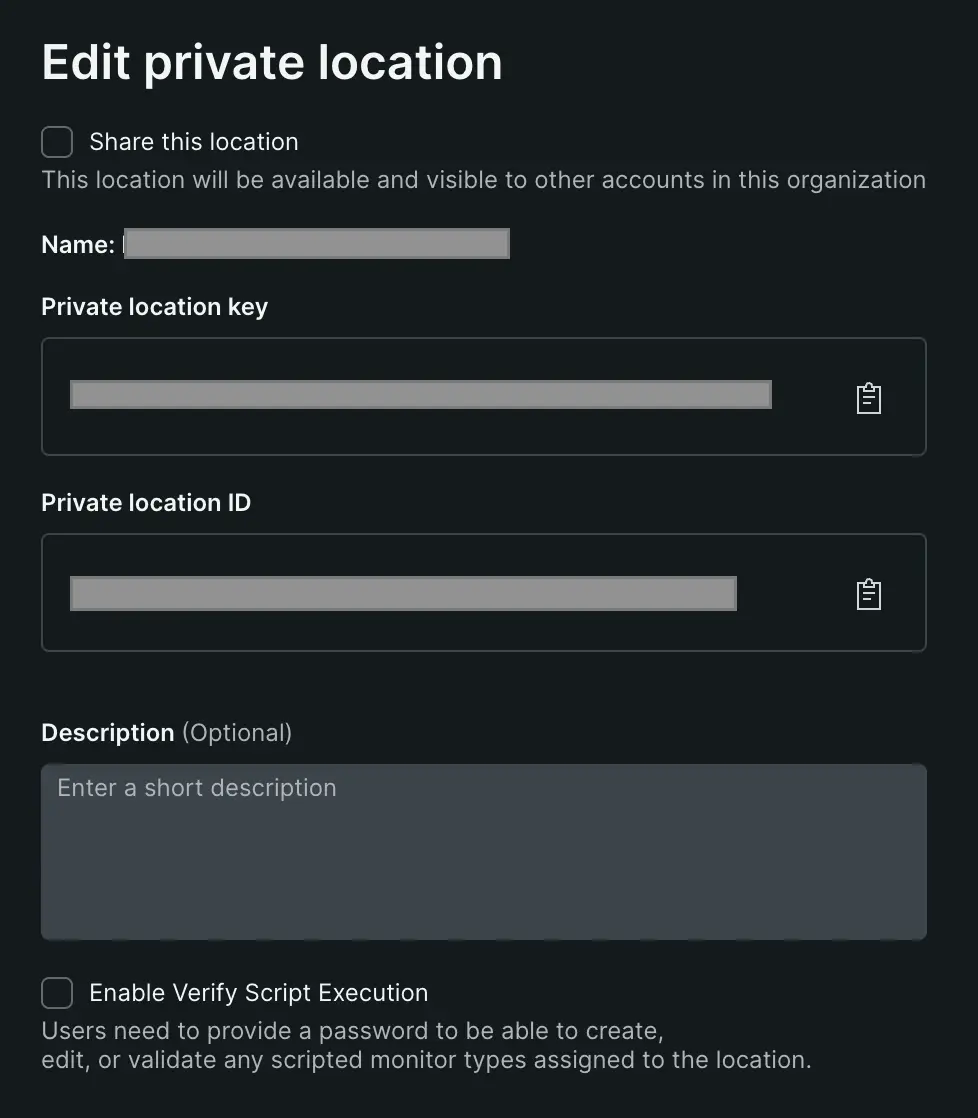
The Edit screen is the only place where you can view and copy the private location key.
Filter and search private locations
The key filter has been removed. You can now filter and search private locations by:
- Location name: Search by the name you assigned to the private location.
- Status: Filter by active or inactive locations.
- VSE (Verified Script Execution): Filter by locations with VSE enabled.
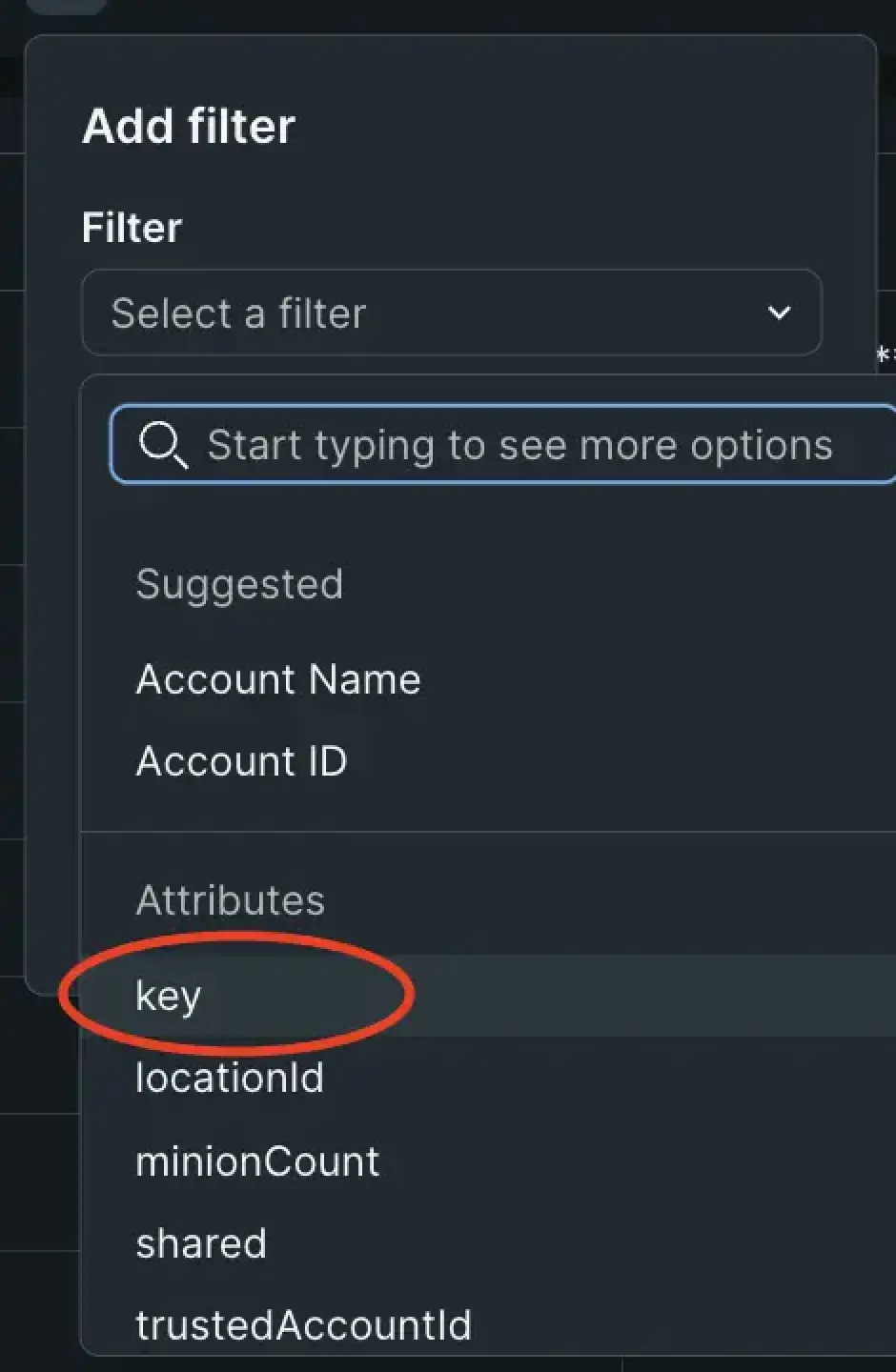
The private location key filter has been removed from the UI.