Security RX Cloud provides a unified security and posture management solution to streamline the discovery, management, and remediation process for cloud security findings. This guide walks you through setting up the integration with AWS Security Hub.
Overview
Security RX Cloud uses a polling integration with AWS Security Hub, which is different from the existing webhook-based integration. This polling method allows for more comprehensive data collection and better integration with New Relic's auto-discovery capabilities.
Prerequisites
Before setting up Security RX Cloud, ensure you have:
- A New Relic account with Security RX access and appropriate user permissions
- An AWS account with AWS Security Hub CSPM enabled. (If at all AWS Security Hub is already enabled, then it by default enables AWS Security Hub CSPM).
- A New Relic license key for the account you want to report data to
Connect your AWS account
There are two setup paths depending on whether you're a new user or already have an existing AWS integration with New Relic.
For new users
If you're connecting your AWS account to New Relic for the first time:
Navigate to the integration setup
From the New Relic platform, navigate to Integrations & Agents, set the search filter to AWS Security Hub integration.
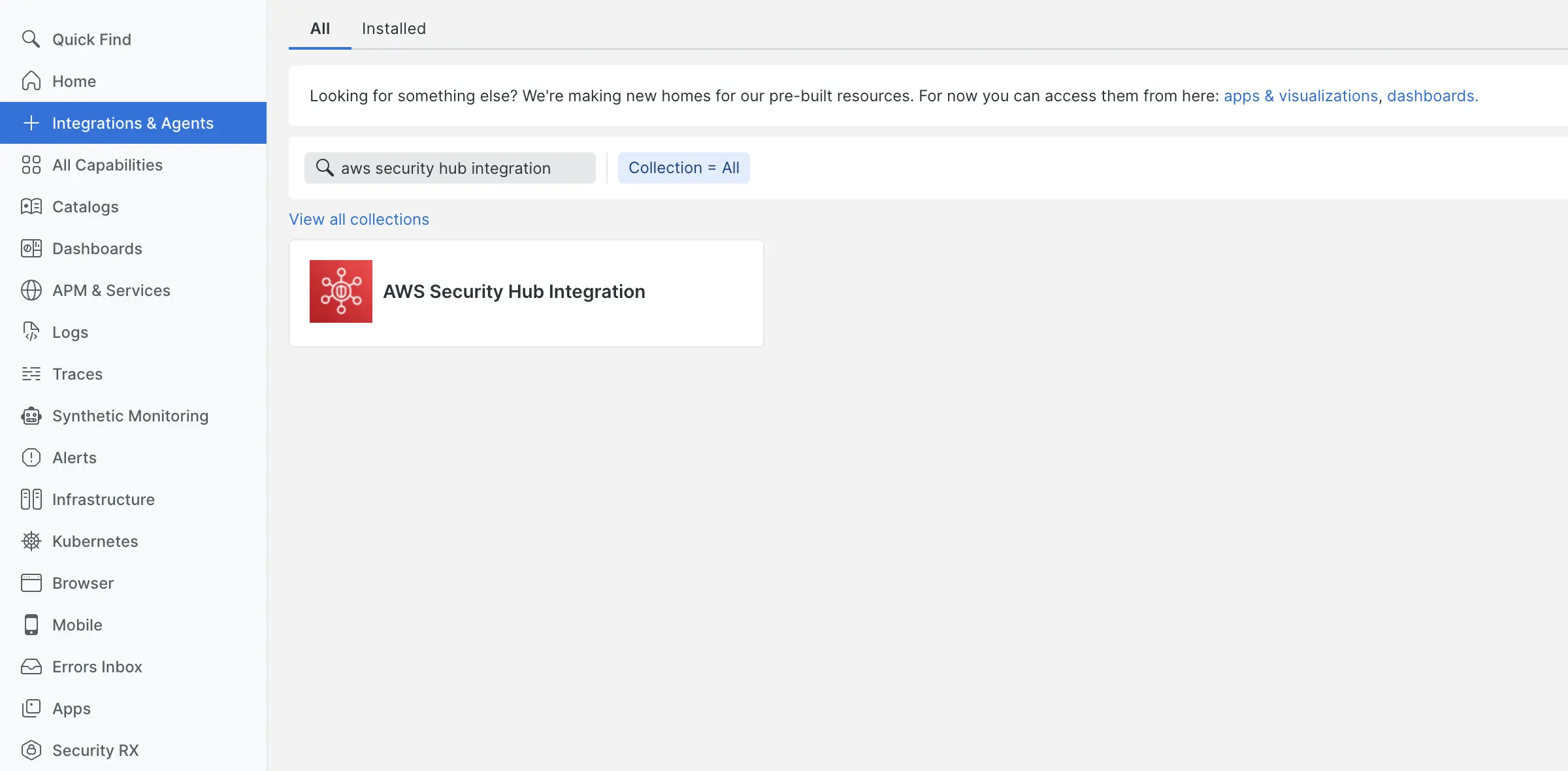
Click Begin installation and follow the guided instructions
For detailed guidance on the API polling integration, see our AWS integration documentation
Choose Security Hub configuration
During the setup process, select Security Hub configurations from the integration options to enable cloud security monitoring.
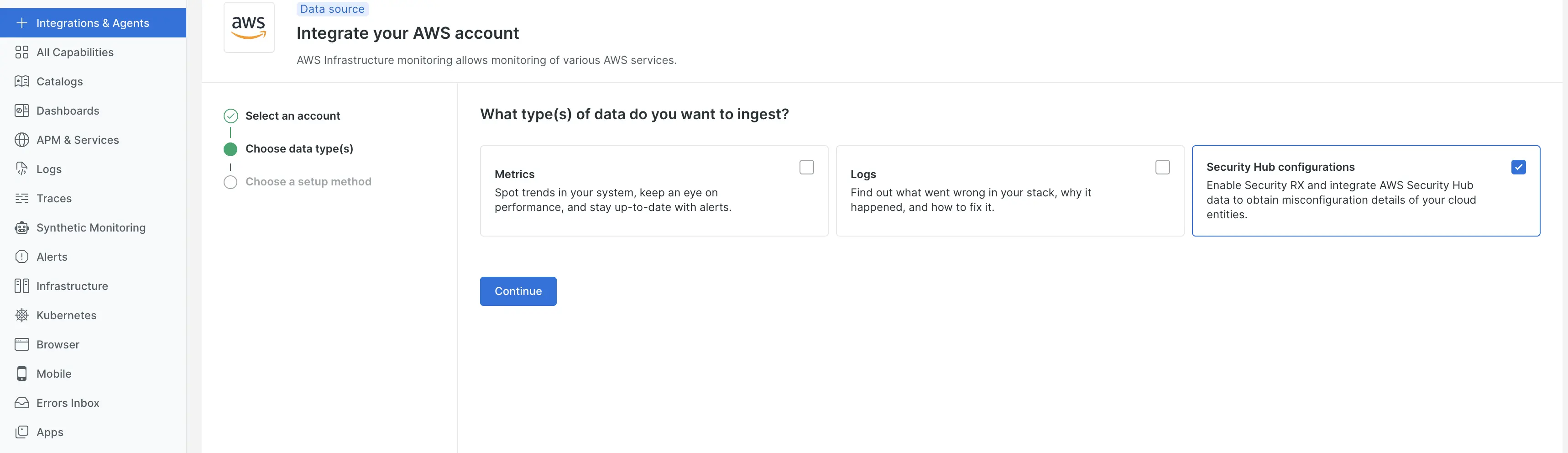
Choose your preferred setup method:
- CloudFormation (recommended for most users)
- Manual integration (for custom configurations)
- Terraform (for infrastructure as code workflows)
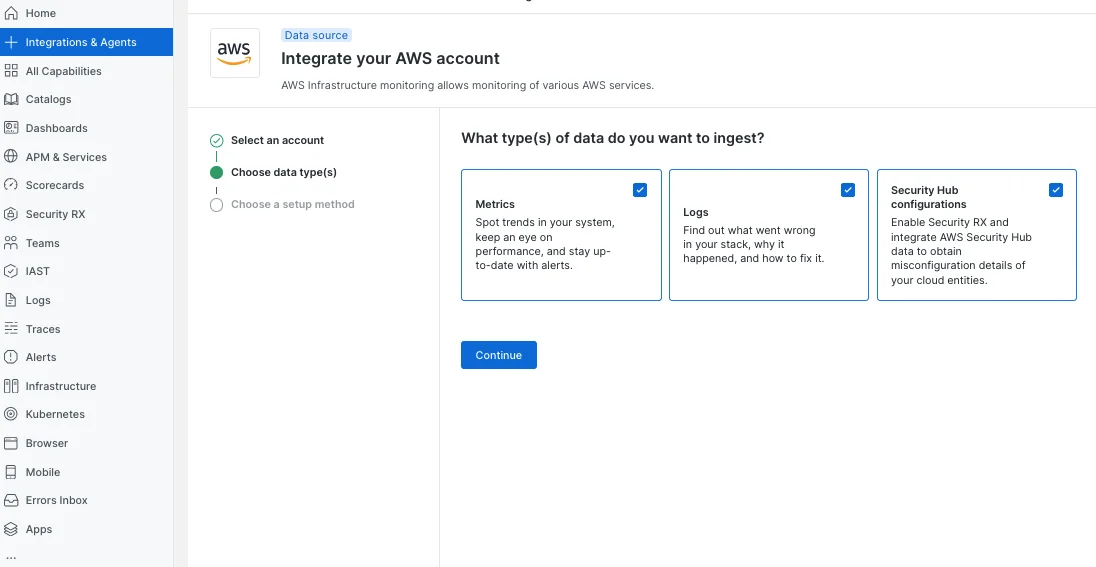
Select the setup method from the available options during AWS integration setup process.
Enable auto-discovery(optional)
When prompted, enable auto-discovery to automatically identify cloud resources
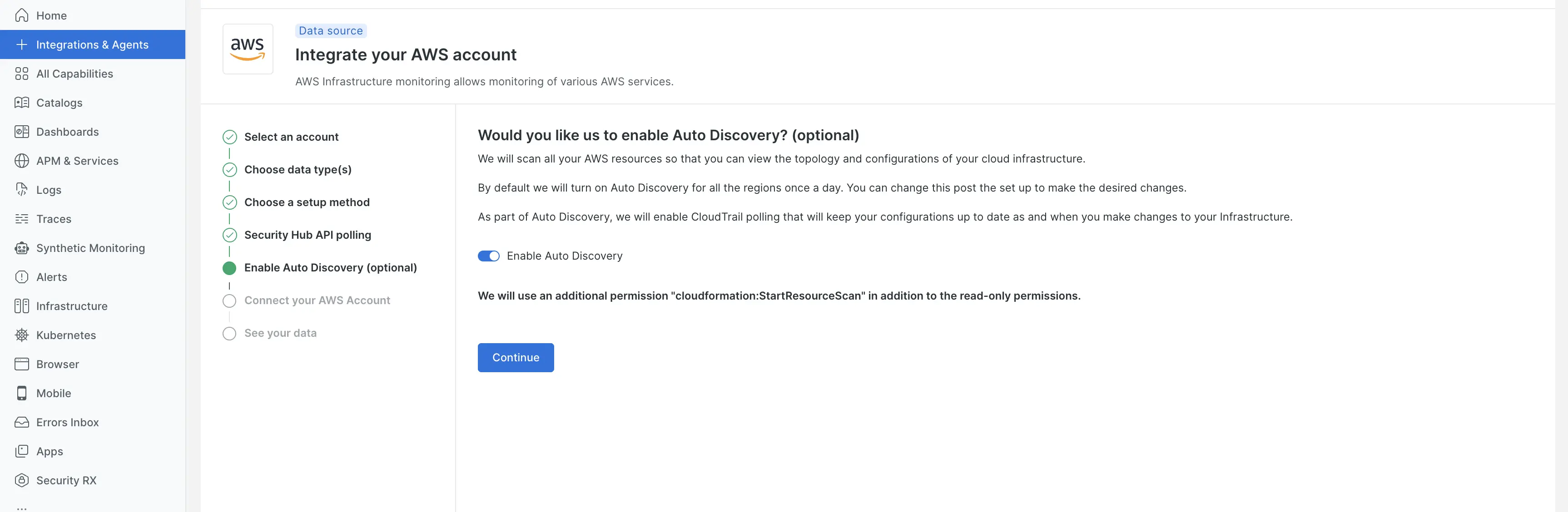
Click Continue
Complete the setup
- Follow the remaining guided setup steps
- If using CloudFormation, launch the provided template in your AWS account
- Navigate to Security RX > Cloud overview(or any cloud page), verify the integration is working by checking for incoming data (usually it takes around 15mins to populate the data).
For existing AWS integration users
If your AWS account is already connected to New Relic, you have two ways to enable Security Hub. Navigate to:
- Integrations & Agents. Once there, complete the integration by opting for Security Hub configurations.
- Infrastructure > AWS > Manage AWS integrations
Access integration management
Navigate to Infrastructure > AWS
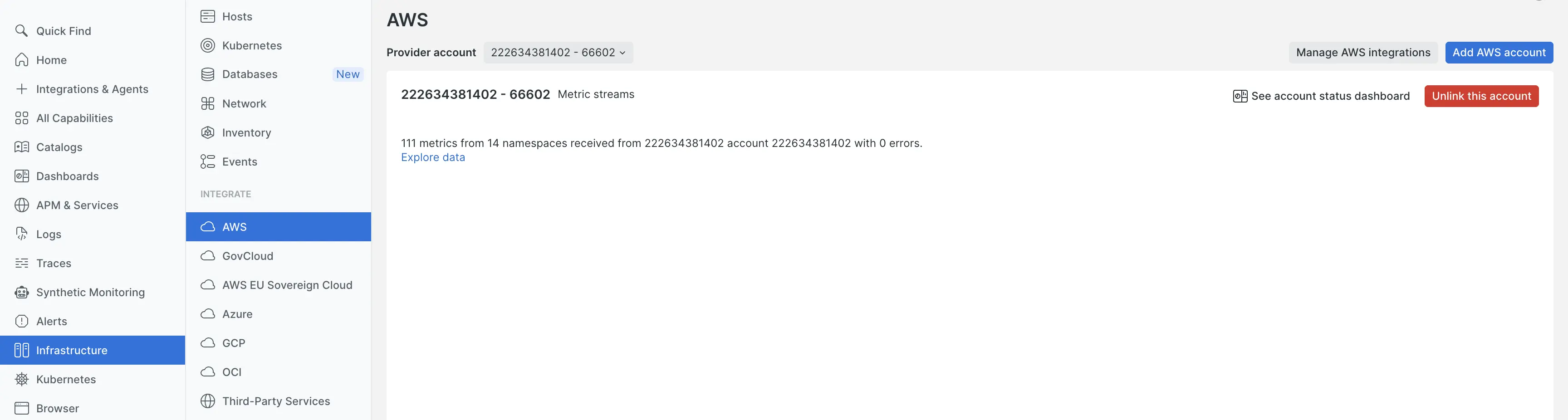
Find your existing AWS account integration
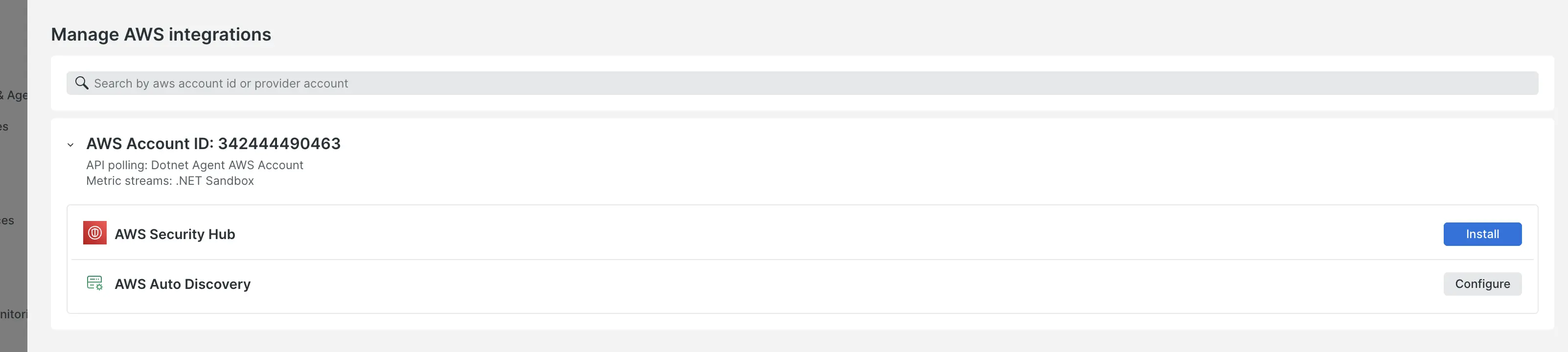
Click Manage AWS Integration
Install Security Hub integration
Look for AWS Security Hub in the available integrations list
If not already configured, you'll see an Install button
Click Install to begin the setup process
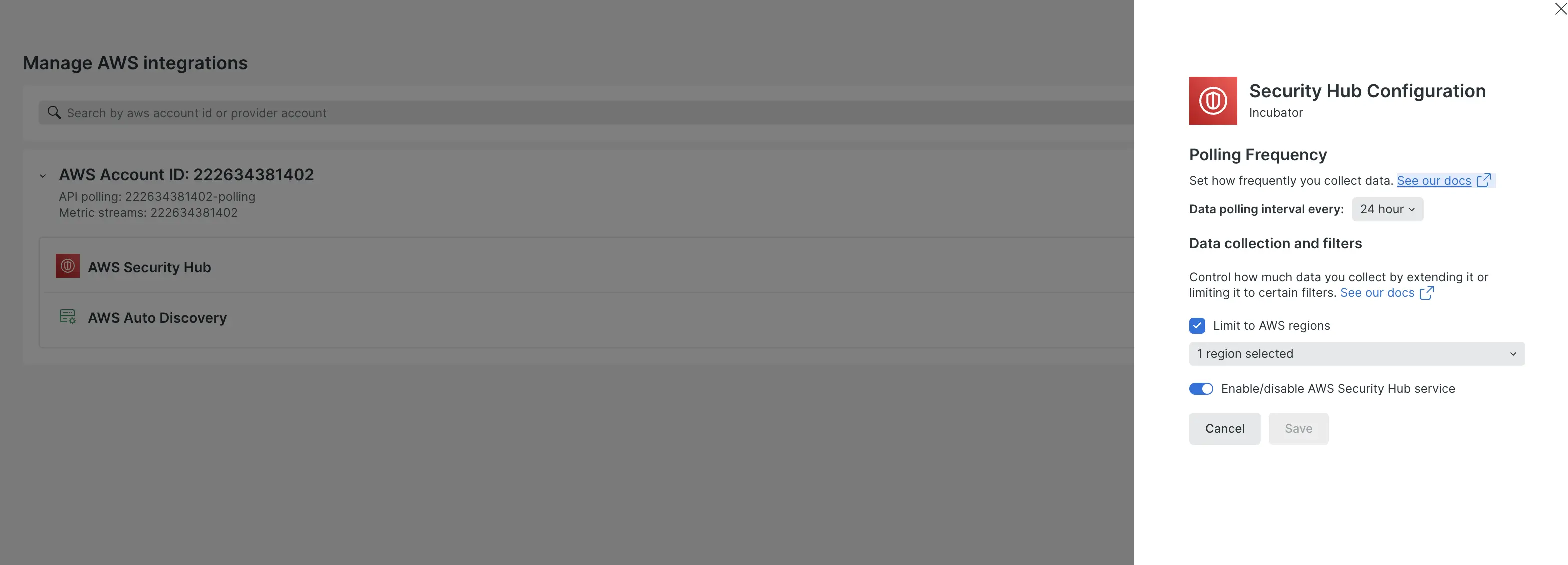
Configure Security Hub settings
Select your polling frequency (6, 12 or 24 hours). By default the polling frequency is 24 hours.
Choose which AWS regions to monitor. By default we monitor across all regions.
Save your configuration
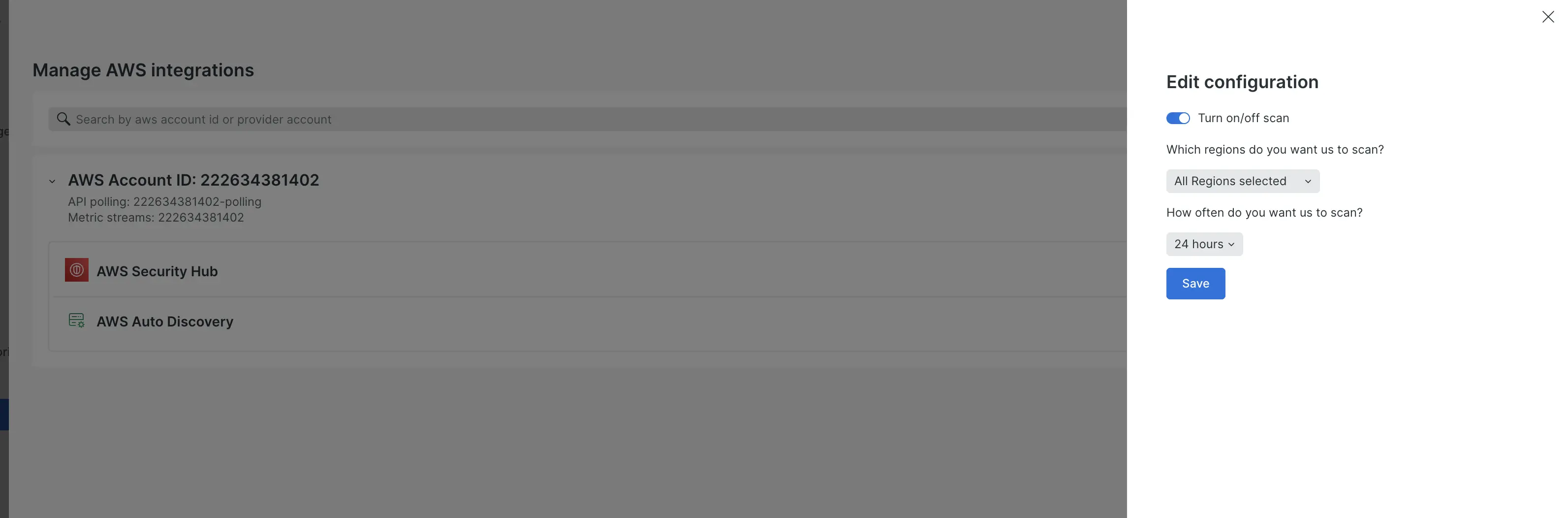
Install & configure auto-discovery (optional but recommended)
Look for AWS Auto Discovery in the integration list
If not already enabled, click Install
Configure regional settings and scanning frequency. The default scanning frequency is 24 hours and default regional settings are all applicable.
Save the auto-discovery configuration
How auto-discovery works with Security RX Cloud
Security RX Cloud is built to leverage New Relic's core platform capabilities through Cloud 360 auto-discovery:
Resource identification with Cloud 360
When you connect your AWS account and enable Cloud 360 auto-discovery, our system:
- Automatically identifies all your cloud resources (EC2 instances, S3 buckets, RDS databases, Lambda functions, etc.)
- Brings them into New Relic as monitored entities
- Fetches live configuration data for these resources
- Continuously monitors for new resources as your cloud environment evolves
Security enrichment
Security RX Cloud then enhances these entities by:
- Enriching them with security findings from AWS Security Hub
- Providing contextual information about misconfigurations
- Displaying current resource configuration alongside proposed remediation steps
This integration makes it easy to see exactly what's wrong with a resource and how the proposed fix will correct it.
Integration with CSPM vendors
AWS Security Hub options
Security RX Cloud integrates with AWS Security Hub, which can aggregate findings from multiple security tools:
- AWS native services: GuardDuty, Inspector, Config, etc.
- Third-party CSPM tools: Any tool that publishes findings to Security Hub
- Custom security findings: Your own security tools that integrate with Security Hub
Understanding the golden path
For optimal outcomes with Security RX Cloud:
- Enable AWS Security Hub as your central security findings aggregator
- Configure your preferred CSPM tools to publish findings to Security Hub
- Use Cloud 360 auto-discovery to ensure all resources are monitored and contextualized
- Set appropriate polling frequency based on your security requirements
Learn more about AWS cloud integrations in New Relic.
Troubleshooting common setup issues
Integration not showing data
If you don't see security findings after setup:
- Verify AWS Security Hub is enabled in your monitored regions
- Check that your IAM permissions include Security Hub read access
- Confirm that security findings exist in AWS Security Hub
- Wait for the next polling cycle 24 hours depending on your settings
Auto-discovery not detecting resources
If resources aren't being discovered:
- Verify auto-discovery is enabled for the correct regions
- Ensure resources exist in the monitored regions
- Verify your IAM role grants read access to all AWS resources in the monitored regions
- Wait for the next discovery scan
For more information, navigate to Auto-discovery for AWS entities
Performance considerations
- Choose polling frequency based on your security response requirements
- Monitor usage to ensure you're within your New Relic data limits
- Consider regional scope to focus on your most critical environments
Next steps
After completing the integration setup:
- Review the cloud misconfiguration prioritization guide to understand how findings are scored
- Learn about remediation workflows for fixing misconfigurations
- Choose your workflow based on your role: