You can use dashboards to visualize and track your system's health, tackle issues, and plan any further steps. Learn to share all that information with your team, customers, or other stakeholders with various import and export options.
Import a dashboard as JSON
You can import a dashboard as JSON when you want to modify an out-of-the-box dashboard at the code level. For example, if you want to create a custom dashboard by merging two existing dashboards together, you can modify a base dashboard's JSON and then import it back to New Relic.
To import a dashboard as JSON:
Go to one.newrelic.com > All capabilities > Dashboards.
Open an existing dashboard's JSON by clicking the ... icon and selecting Download dashboard.
Choose JSON from the format options and select Copy to clipboard.
Go back to the Dashboards page.
In the top-right corner, click Import dashboard.
Paste your JSON code.
Choose the account and permission settings for the dashboard. You can't change the account once you've set it, but you can change the permissions at any time.
Click Save.
Export a dashboard
To export a dashboard as a JSON, PDF, or PNG file:
In the dashboard's top right corner, click the ... icon and select Download dashboard.
Choose JSON, PDF, or PNG as the output format.
(Optional) For PDF or PNG, set the export width and height, in pixels. Both default to 1920 x 1080.
Click Download.
New Relic doesn't support custom visualizations when exporting a dashboard as PDF or PNG via the UI.
To export as PDF or PNG with additional options such as template variable overrides and entity filters, use the NerdGraph API.
Export dashboards and charts via NerdGraph API
Use the NerdGraph API to programmatically export dashboards and individual chart widgets as snapshot images. The API supports options not available in the UI, including custom dimensions, template variable overrides, and entity filters.
Export a dashboard as PDF or PNG
The dashboardCreateSnapshotUrl mutation generates a snapshot URL for a full dashboard page.
Tip
The guid parameter requires the page GUID, not the dashboard GUID. A dashboard can have multiple pages. To find page GUIDs, use the entitySearch query or open the dashboard page and select Manage JSON from the ... menu.
{ actor { entitySearch( query: "parentId ='YOUR_DASHBOARD_GUID' AND tags.isDashboardPage = 'true'" ) { results { entities { guid name } } } }}Mutation schema:
mutation {  dashboardCreateSnapshotUrl(    guid: EntityGuid!    params: SnapshotUrlInput  ): String}
input SnapshotUrlInput {  timeWindow: SnapshotUrlTimeWindowInput  display: SnapshotUrlDisplayInput  variables: [SnapshotUrlVariableInput!]  filter: String  format: SnapshotUrlFormat}
input SnapshotUrlTimeWindowInput {  beginTime: EpochMilliseconds  endTime: EpochMilliseconds  duration: Milliseconds}
input SnapshotUrlDisplayInput {  width: Int  height: Int}
input SnapshotUrlVariableInput {  name: String!  values: [String!]!}
enum SnapshotUrlFormat { PDF PNG}Parameter reference:
Parameter | Type | Default | Description |
|---|---|---|---|
|
| — | Required. The entity GUID of the dashboard page. |
|
| Dashboard's current time window | Start of the data window (epoch ms). |
|
| Dashboard's current time window | End of the data window (epoch ms). |
|
| — | Relative time window, alternative to |
|
| 1920 | Width in pixels for the snapshot. |
|
| 1080 | Height in pixels for the snapshot. |
|
| Dashboard's current variable values | Pin specific values for dashboard template variables. |
|
| No filter | NRQL-style entity filter applied at snapshot time. |
|
|
| Output format: |
Examples:
Important
Snapshot URLs are publicly accessible without authentication and expire after 3 months. Share them carefully in accordance with your organization's data policies.
Get a chart image
The dashboardWidgetCreateSnapshotUrl mutation generates a PNG snapshot URL for a single chart widget. The widget doesn't need to exist on a dashboard — you can define it inline, which makes this useful for generating chart images programmatically.
Mutation schema:
mutation {  dashboardWidgetCreateSnapshotUrl(    widget: DeclarativeUiWidget!  ): WidgetSnapshotResult}
type WidgetSnapshotResult { url: String!}The widget parameter accepts a DeclarativeUiWidget — a JSON object with three nested layers:
declarative/widget envelope└── widget node ← title and widget-level props └── visualization ← visualization type and configuration{ "type": "declarative/widget", "version": 1, "content": { "type": "widget", "props": { "title": "My Chart Title" }, "content": { "type": "visualization", "id": "viz.line", "props": { // visualization-specific config (nrqlQueries, colors, thresholds, etc.) } } }}If you're building the widget definition from a dashboard you've exported as JSON, use this field mapping:
Dashboard JSON field | DeclarativeUiWidget field |
|---|---|
|
|
|
|
|
|
| Not included — not needed for standalone snapshots |
Examples:
Tip
The legacy actor.account.nrql.staticChartUrl field in NerdGraph remains available but doesn't support the latest visualization features such as thresholds, color formatting, and newer chart types. dashboardWidgetCreateSnapshotUrl is the recommended approach going forward.
Important
dashboardWidgetCreateSnapshotUrl generates PNG image snapshot URLs. These are publicly accessible without authentication and expire after 3 months.
Export a chart as CSV
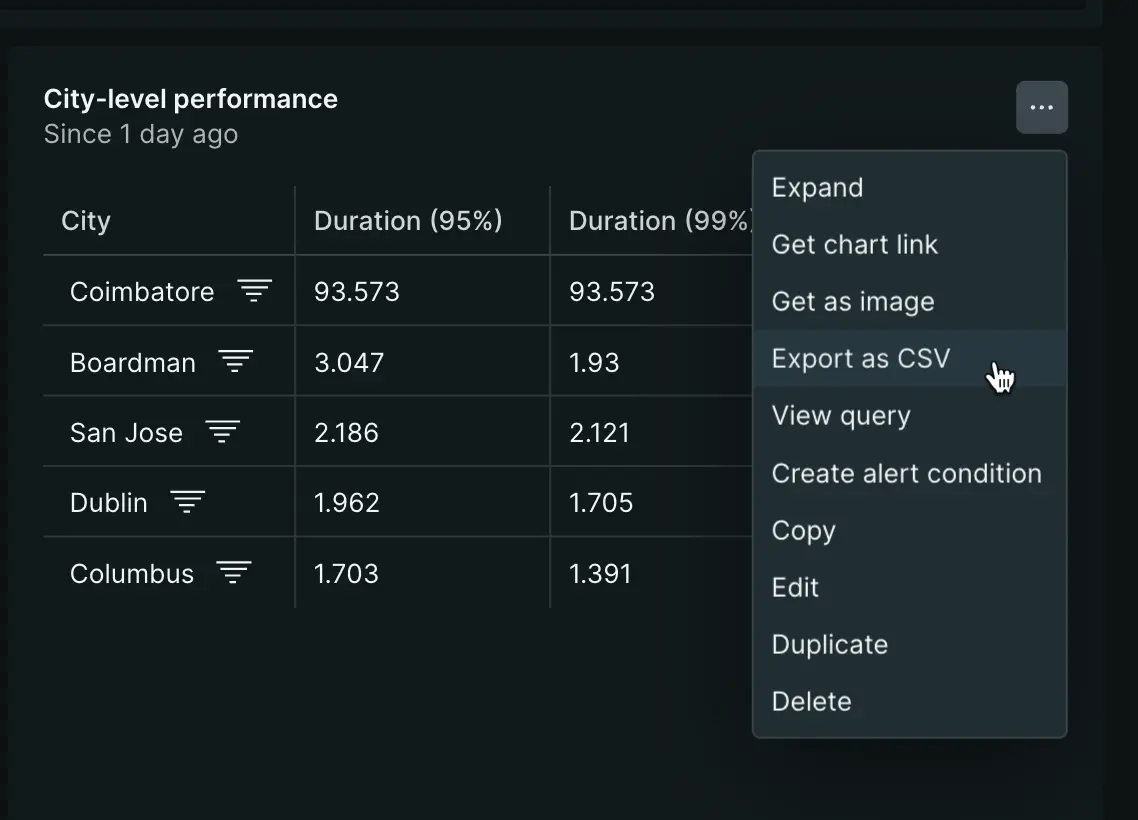
To export a dashboard's table chart as a CSV file, in the chart's top right corner, click ... and select Export as CSV.
Query and explore charts
For details about what you can do with the charts, see Querying and charting options.