モニター対象の各システムについて、これらの設定タスクを完了してください。
アップロード承認ロール
SAP transaction
PFCGを使用します。Role > Upload に移動し、インストレーション パッケージからファイル_NEWR_DATA_PROVIDER.SAPをアップロードします。
ロール
/NEWR/DATA_PROVIDERがロードされることを確認します。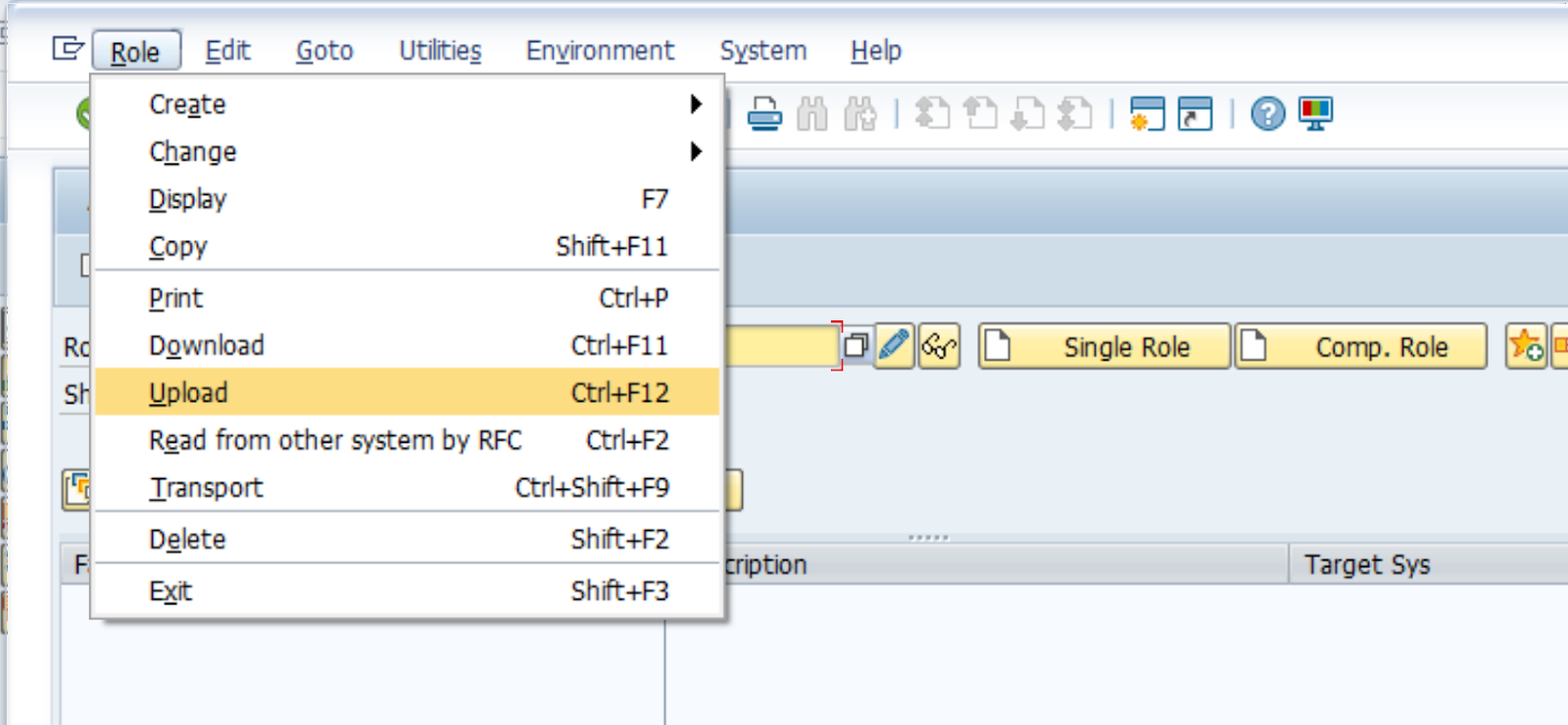

ロールがロードされた後のアイコン。
Authorizationsタブで、
Change Authorization Data、次を使用して有効化します
 アイコン。
アイコン。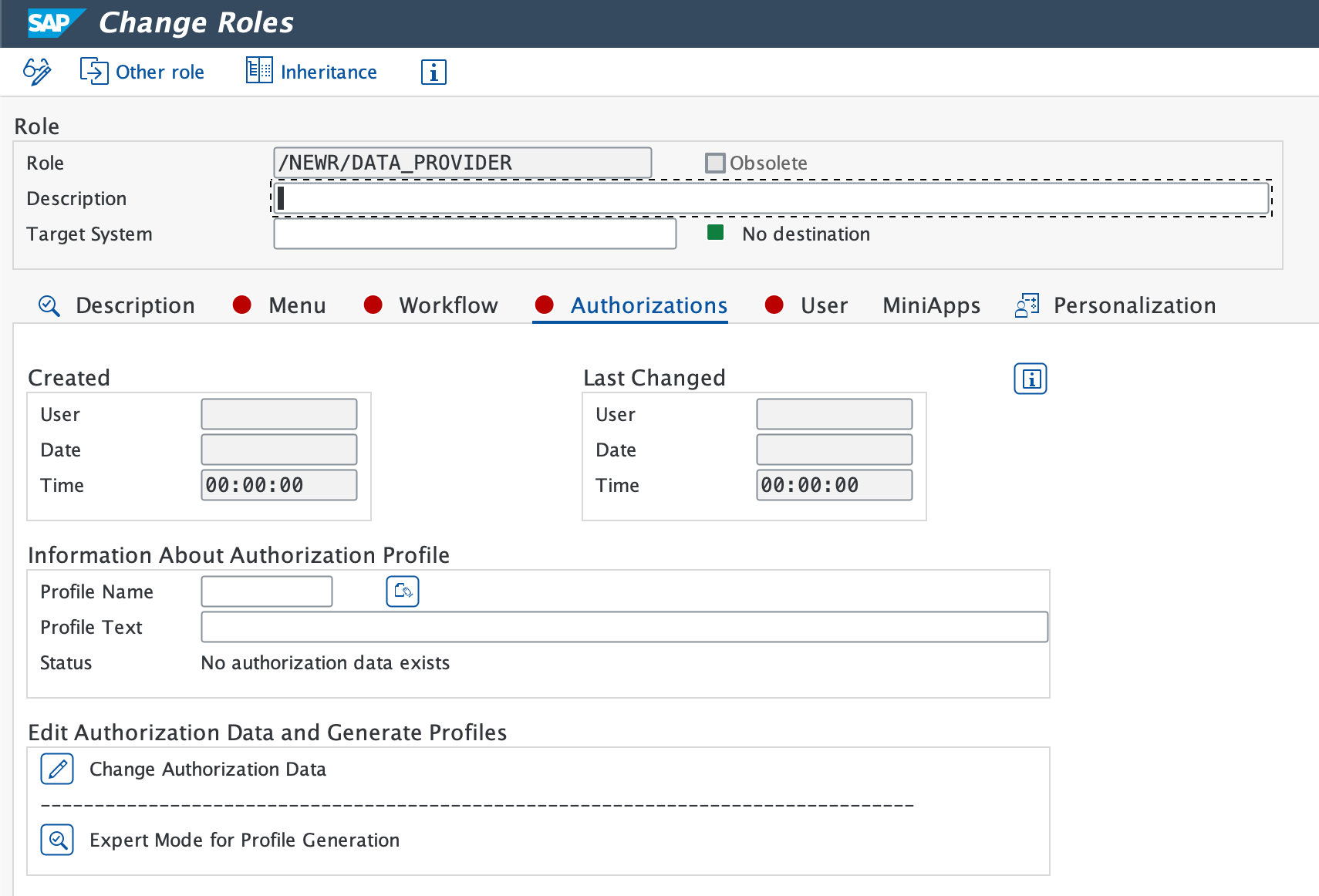
プロファイル名が提案された場合は、緑色のチェックアイコンを選択します。
ステータス バーにProfile(s) were updatedが表示されていることを確認します。
重要
システムにSLT module monitoringが必要な場合は、インストレーションパッケージの_NEWR_SLT_COLLECTOR.SAPファイルから/NEWR/SLT_COLLECTORロールもアップロードしてください。
New Relic RFC ユーザー ID の作成
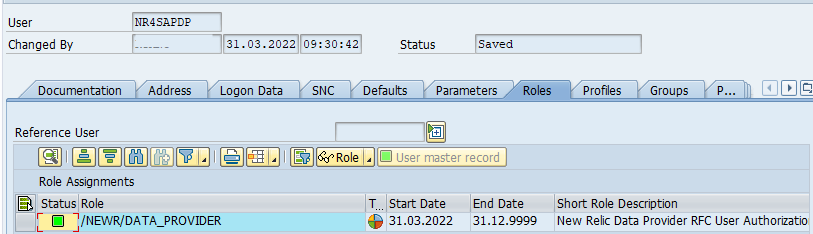
authorization profileをアクティブ化した後、トランザクションSU01を使用して新しいRFC user ID(例:NR4SAPDP)を作成します。モニター(データプロバイダー)システムではuser typeをCommunicationに設定し、中央監視システム(CMS)ではSystemに設定します。次に、ロール/NEWR/DATA_PROVIDERを追加します。
標準RFC宛先
モニターシステムごとにトランザクションSM59を使用して、RFC destinationを作成します。
ABAP Connectionsを選択し、次にCreateアイコンを選択して新しいRFC destinationを設定します。
分かりやすいRFC Destination名を入力します。以下をお勧めします:
NR_<SYSID>CLNT<CLNT#>Connection Typeを
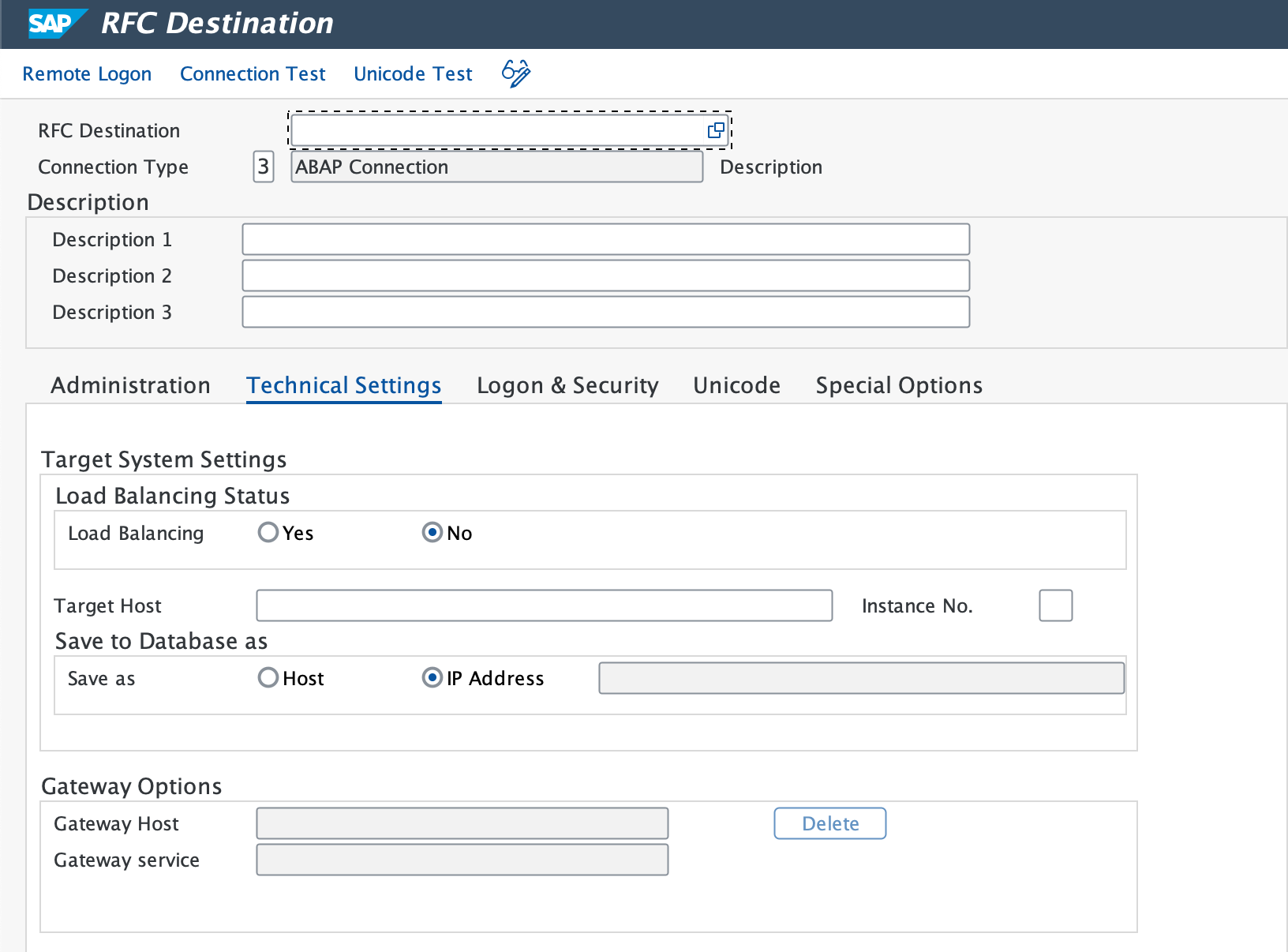
3 - ABAP Connectionに設定します。Technical Settingsタブで、次を入力します。
- Target Host (完全修飾ドメインまたは IP)と Instance No.
- Gateway Host 、必要に応じてService。
ヒント
可能な限りload balancingを使用してください。これにより、単一の接続がダウンした場合でもデータ収集を継続できます。詳細な手順については、SAPドキュメントの「Setting Up an RFC Destination with Load Balancing」を参照してください。
Logon & Securityタブで、RFC user(
NR4SAPDP)とパスワードを入力します。Saveを選択します。
Utility > Test > Connection Testに移動し、次にAuthorization Testに移動します。
- Expected result: 両方のテストで成功ステータスが示されています。
HTTP宛先をNew Relic cloudに設定する
トランザクションSM59を使用して、HTTPS connectionsをNew Relic API endpointsに設定します。
重要
Events、Logs、Metrics、およびTracesに対して、個別のRFC destinationsを別々に作成します。
Destination Nameを入力します (例:
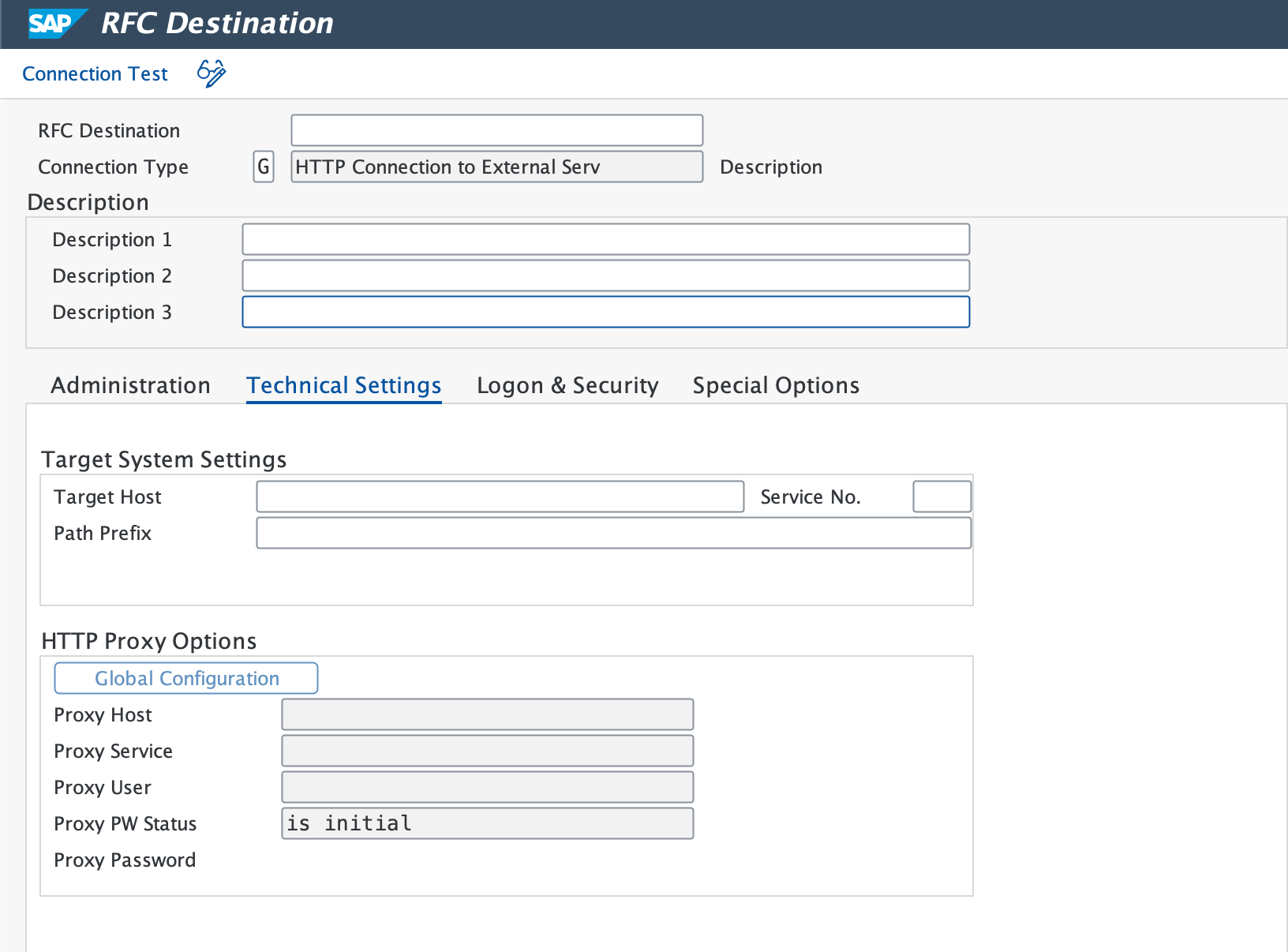
NR_API_EVENT)。Connection Typeを
G(外部サーバーへの HTTP 接続) に設定します。Target Host、Service No.を443として(HTTPSの標準ポートを参照)、およびPath Prefix(詳細についてはインストレーション準備チェックリストを参照)を入力します。
プロキシが必要な場合は、Technical Settingsタブで設定します。
Security Optionsタブで、SSLのActiveオプションを選択します。
SSL証明書がまだ設定されていない場合は、ブラウザでNew Relicエンドポイントからroot and intermediate certificatesをダウンロードし、トランザクション
STRUSTを使用してSAPにインポートしてください。Connection Testを選択して接続を確認します。
- Expected result: 接続が成功すると、ログオンデータの入力を求めるプロンプトが表示されます。
- If test times out:ファイアウォールが接続をブロックしている可能性があります。ネットワークチームに相談して、New Relic domainsへのアクセスが許可されていることを確認してください。
ログオンプロンプトでCancelを選択して続行します。HTTP 4xxレスポンスコード画面により、接続が機能していることが確認できます。
すべてのNew Relic API endpointsに対してこの手順を繰り返します。
Cloud(BTP)RFC宛先
サービスのタブを選択してください:
ダウンロードしたService Keyを開き、
clientId、clientsecret、およびtokenurlを特定して記録します。Webブラウザを使用して、サービスキーで指定されたURLにアクセスしてください。
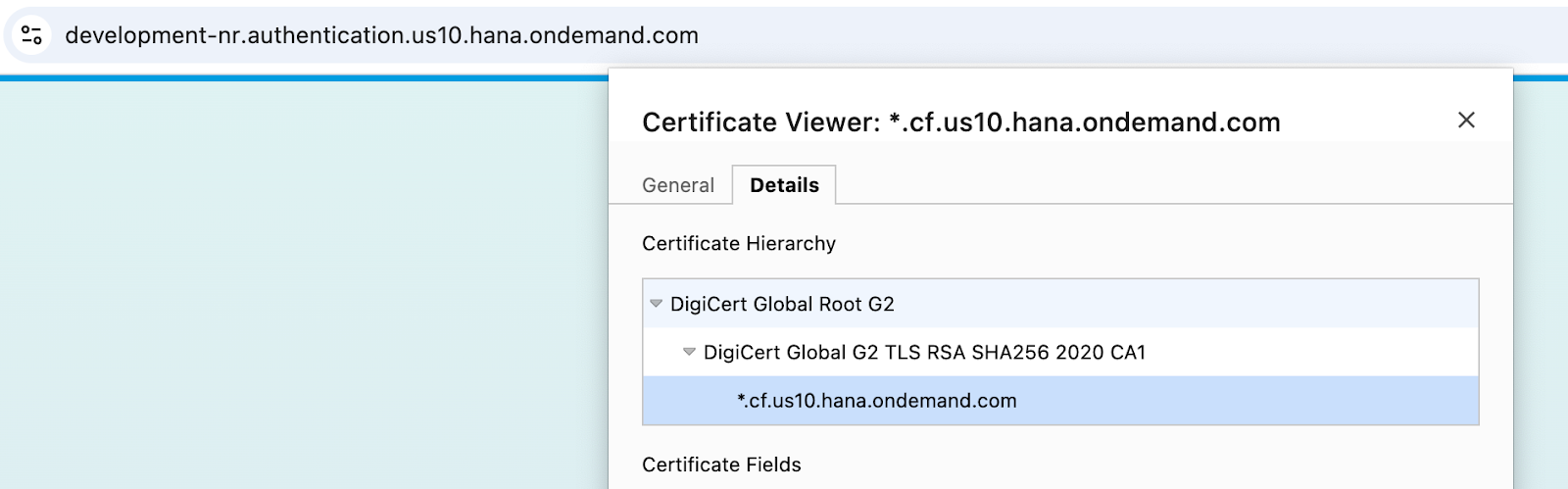
そのページから、SAP on demand、Digicert global、およびDigicert rootの証明書を取得してください。
トランザクションコード
STRUSTに移動し、編集モードでSSL Client (Standard)を選択します。3つの証明書を個別にアップロードし、それぞれに対してAdd to Certificate Listを選択して、変更内容を保存します。
Tcode
SMICMに移動し、次にAdministration > ICM > Exit Soft > Globalを選択します。このアクションを実行すると、システム内のすべてのICM processesの再起動がトリガーされます。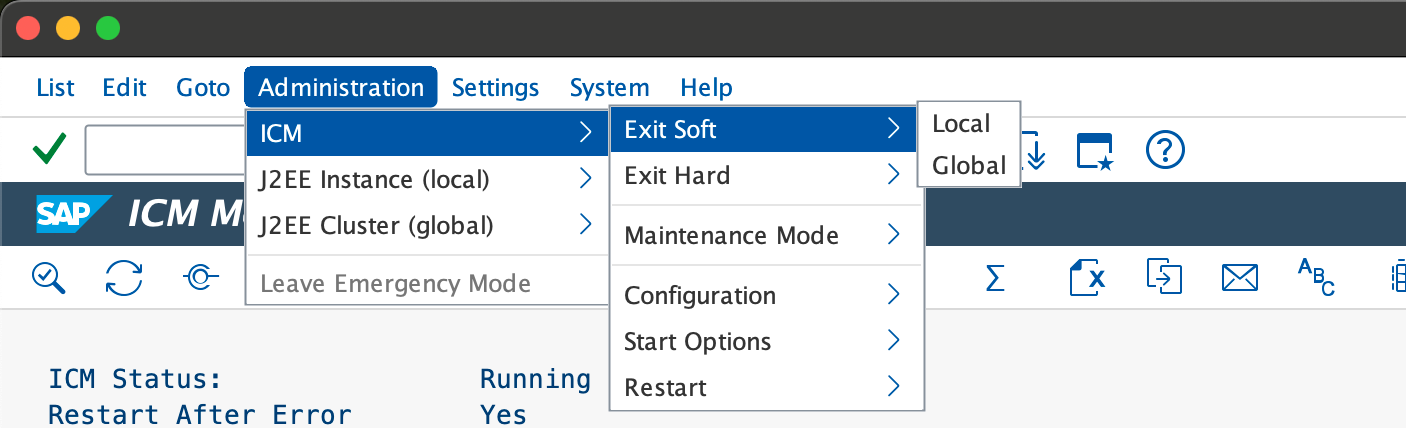
SAPシステムにアクセスしてトランザクションコード
SM59に移動し、HTTP Connections to External Serverカテゴリ内に新しいRFC connectionを作成します。トークンURLをそれぞれのホストとパスプレフィックスのコンポーネントに分割して、宛先を設定してください。
サービス番号を
443に設定し、?grant_type=client_credentialsを追加してパスプレフィックスを変更します。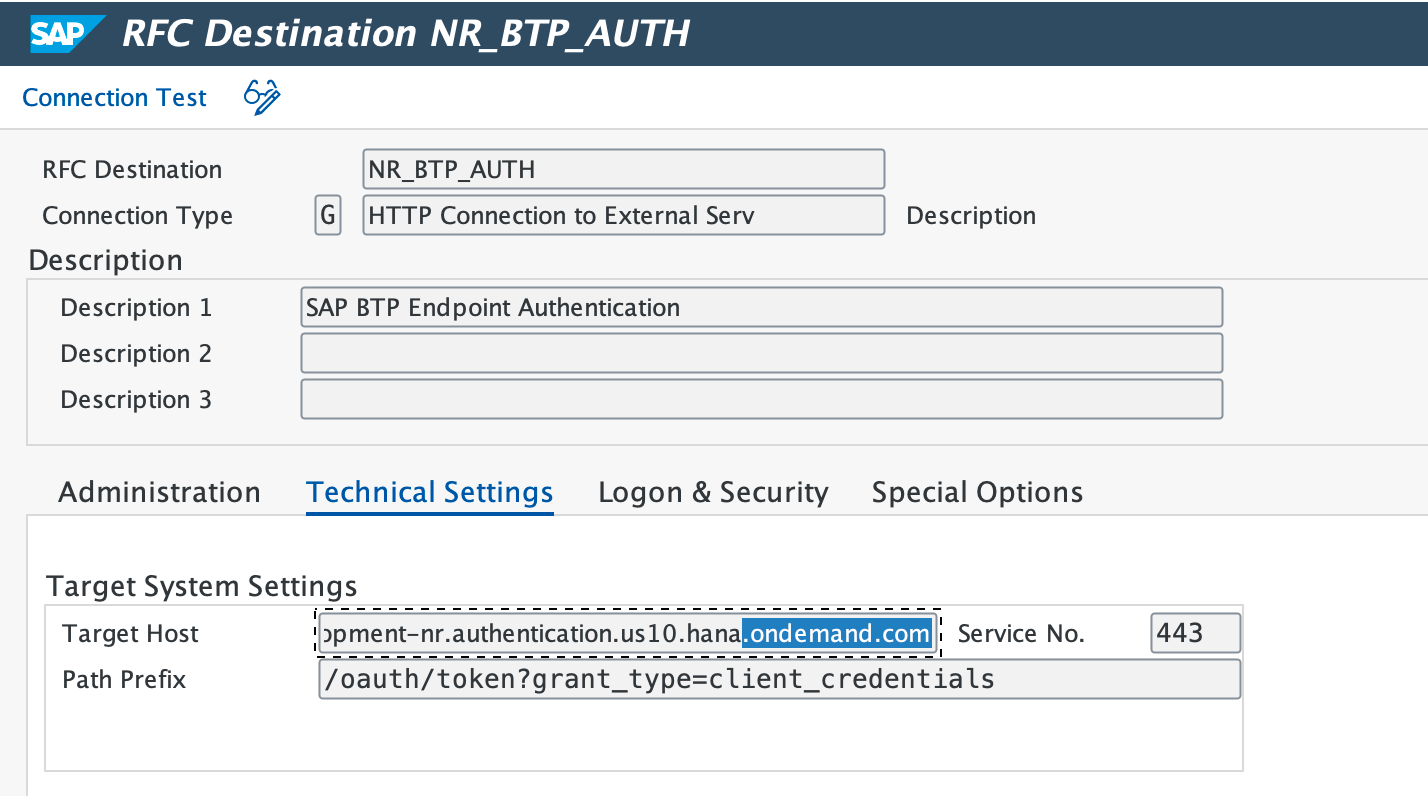
Login & SecurityタブでBasic Authenticationを選択し、ユーザー名とパスワードとして
clientIdとclientsecretを入力します。Secure ProtocolのステータスをActiveに設定し、設定を保存します。
Connection Testを選択します。
ダウンロードしたService Keyの
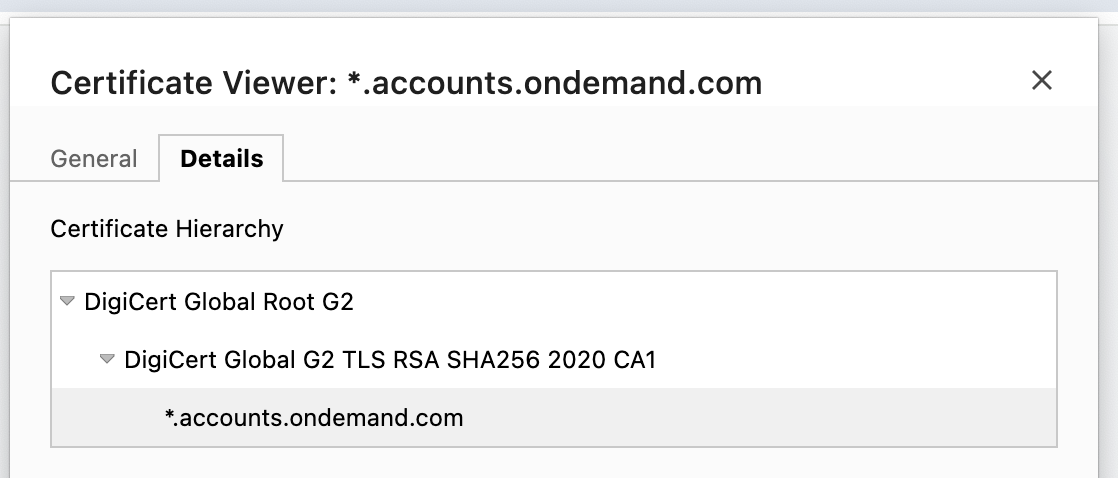
clientId、clientsecret、urlをメモします。Web ブラウザーでurlにアクセスし、Digicert root、global、およびSAP on demandの証明書をダウンロードします。
トランザクションコード
STRUSTに移動し、編集モードでSSL Client (Standard)を選択します。3つの証明書をそれぞれ個別にアップロードし、Add to Certificate Listを選択して変更を保存してください。
Tcode
SMICMに移動し、次にAdministration > ICM > Exit Soft > Globalを選択します。このアクションを実行すると、すべてのシステムICM processesの再起動がトリガーされます。SAPシステムにログインした後、トランザクションコード
SM59にアクセスし、HTTP Connections to External Serverカテゴリに新しいRFC connectionを作成します。適切なURLでTarget Hostを構成し、Service No.を
443に設定してください。Path Prefixを/oauth/token?grant_type=client_credentialsに設定してください。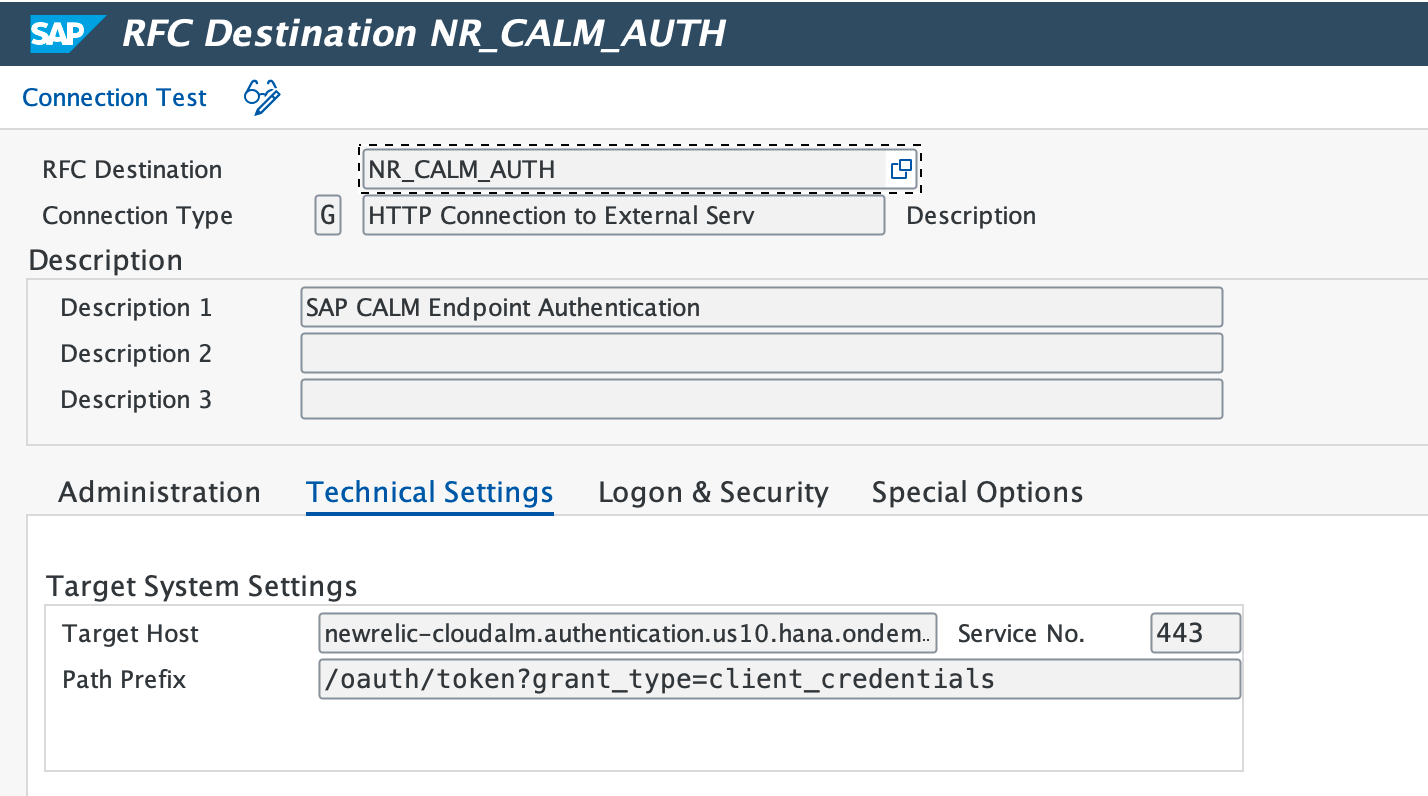
Login & Securityタブに移動し、Login with userセクションでBasic Authenticationを選択してください。ユーザー名として
clientIdを、パスワードとしてclientsecretを指定してください。以下のSecure Protocolステータスを見つけて、Activeに設定してください。
保存して設定の変更を適用し、次にConnection Testを選択します。
データベース接続を作成する
トランザクションDBACOCKPITを使用して、リモートHANA Database connectionsを定義します。左側のペインでDatabase Connectionsをダブルクリックし、Addを選択して新しい接続を作成します。
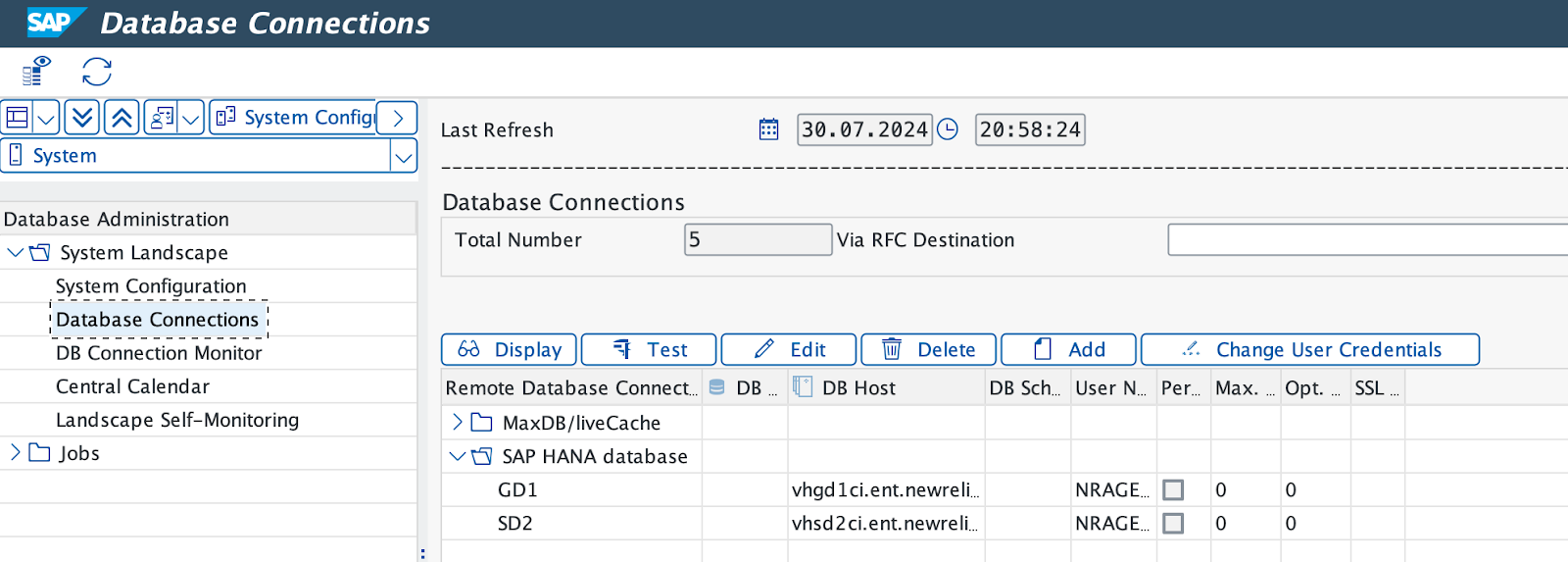
Database Detailsで、次の手順を実行します:
Connection Nameを入力します(SAP system IDの使用をお勧めします)。
指定されたDatabase SystemとしてHANA Databaseを選択します。
データベースユーザーID(
NRAGENTが推奨IDです)を指定し、パスワードを入力して確認してください。Database HostとSQL Portを入力します。
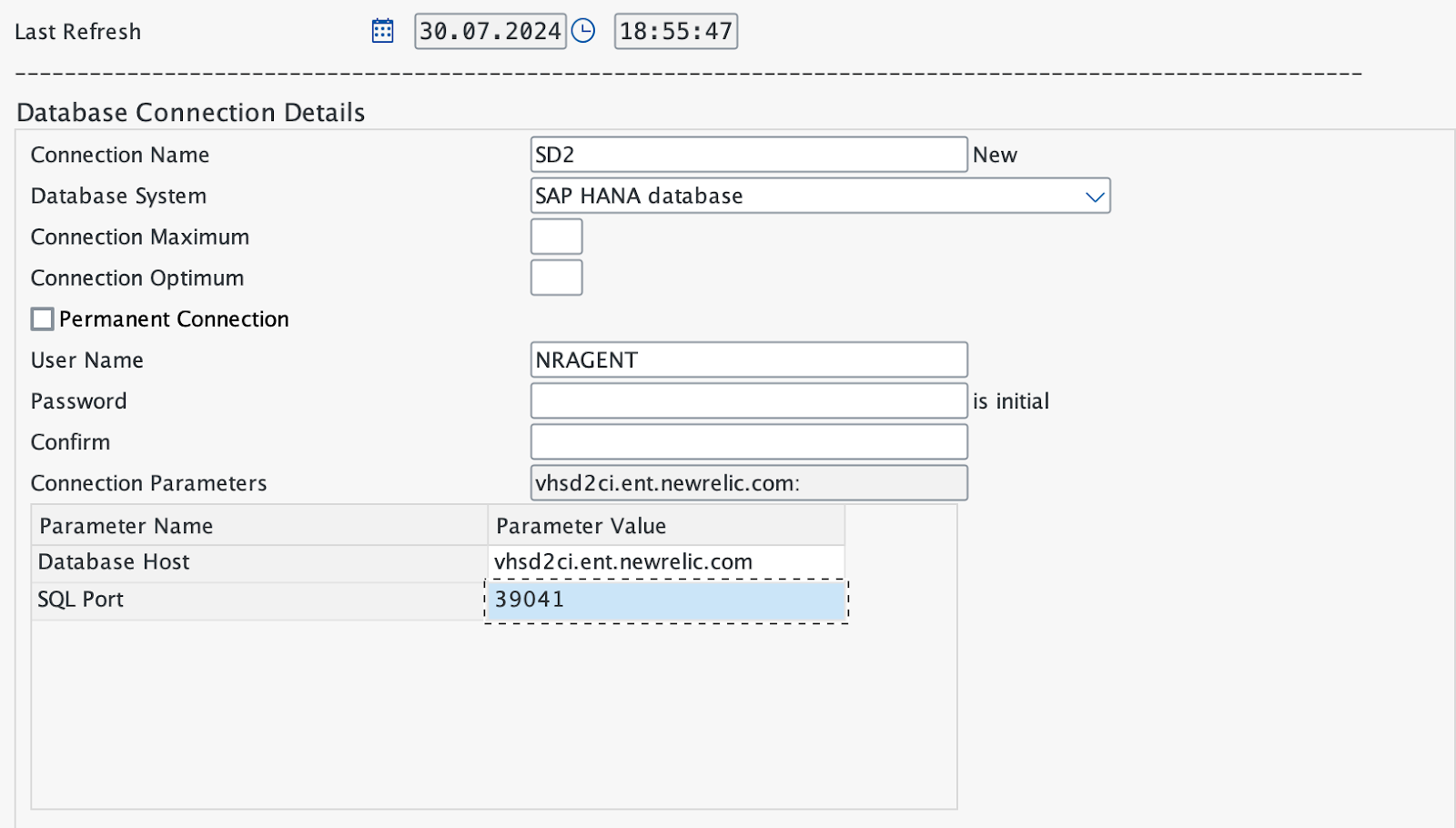
エントリを保存した後、Testを選択してデータベースへの接続を確認します。
- Expected result:接続テストが成功ステータスを示しています。